Optimizing for Performance and Compliance with Claude Code and Vercel
By Grant Madsen
There is a phase in most projects where the features are done but the site is quietly underperforming. Colour contrast ratios that technically pass but hover near the threshold. JavaScript bundles that are larger than they need to be. Animations that look fine visually but delay the largest contentful paint. These things are known quantities. They just need to be measured and addressed systematically.
After building this site, I ran it through PageSpeed and worked through everything it surfaced. This post covers the setup and workflow I used to do that, and how the same loop now catches issues before they reach production.
The Tools
Three pieces work together here.
Claude Code is an AI coding assistant that runs directly inside VS Code. It reads your codebase, helps you reason through what the audit results actually mean, and applies fixes in context. When PageSpeed flags a long task, Claude Code can trace it back to the exact import responsible, suggest the fix, and apply it without you having to cross-reference the bundle output manually.
Vercel handles deployment. Every push to the main branch triggers a production build, and every pull request gets a preview URL. The pipeline is fast and the integration with Next.js is seamless.
Slack receives a message every time a deployment completes. Anyone on the team knows the moment something ships, with a direct link to the deployment.
Setting Up Claude Code in VS Code
Claude Code runs as a VS Code extension. Once it is installed and authenticated, you open it from the sidebar and start working.
The key difference from a standard AI assistant is context. Claude Code reads your entire project. When you ask it to fix a contrast issue, it already knows your colour variables, your Tailwind config, and which components use which classes. You are not explaining the codebase from scratch every time.
A typical optimization session looks like this. You run PageSpeed, note what failed, and open Claude Code. Describe the issue and paste in the audit details. Claude Code traces the problem through the relevant files, proposes a fix, and applies it. You review the diff, test, and commit.
For this site, that process covered a 1200ms long task from GSAP being imported statically in the page transition component, and WCAG touch target sizing issues across the carousel navigation. Both were deliberate trade-offs made during the initial build that Claude Code helped resolve cleanly.
The PageSpeed Workflow
PageSpeed Insights is a free tool from Google that runs a Lighthouse audit against any public URL and returns performance, accessibility, and best practices scores alongside specific failing audits.
Running it after the initial build gave a clear list of what to address. The desktop performance score was sitting at 72.
Before
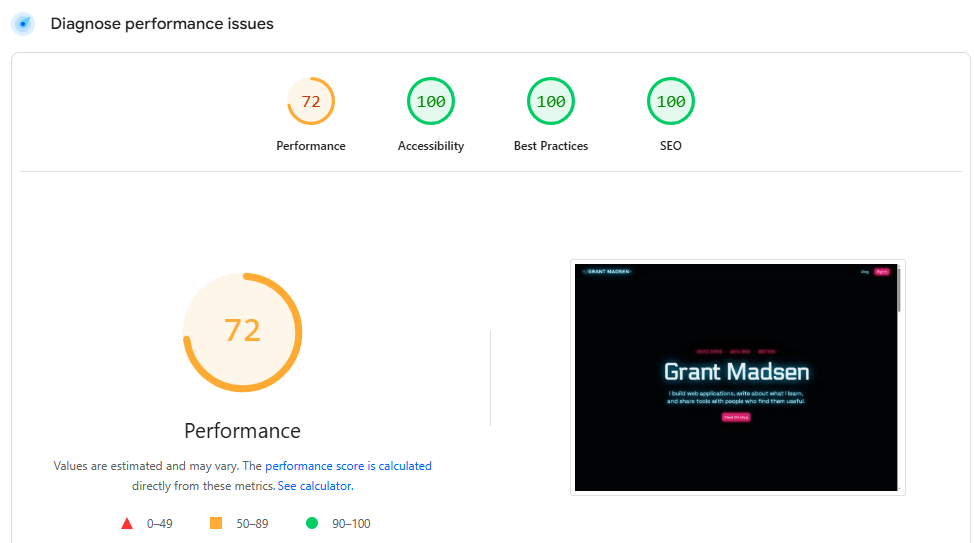
The audit flagged a 1200ms long task from GSAP being imported statically in the page transition component, a framer-motion animation holding the hero heading at opacity 0 and pushing LCP to 5.4 seconds, and 261kb of Clerk JavaScript loaded on a page with no auth requirement.
None of these were bugs. They were known optimizations that the audit made measurable and prioritizable.
After
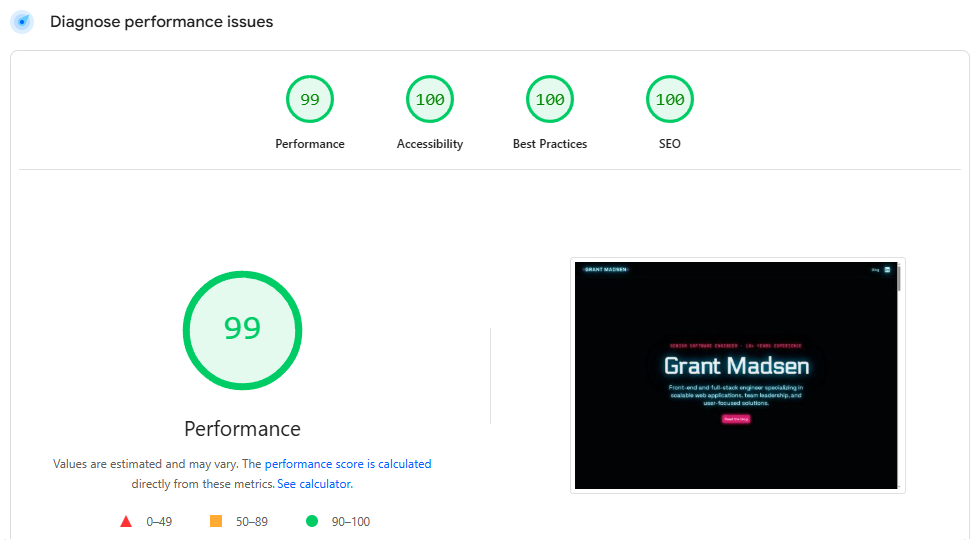
The GSAP import became a dynamic import inside an async function. The framer-motion animation in the hero was replaced with a CSS keyframe that does not block LCP. The Clerk middleware was scoped away from the home page entirely. Performance climbed to 99.
The accessibility score reached 100 across both desktop and mobile. That involved tightening colour contrast ratios, resolving touch target overlap in the dot navigation, and adding the right ARIA roles to the carousel.
Running PageSpeed regularly keeps this work from accumulating.
The Vercel CI/CD Pipeline
Vercel connects directly to the GitHub repository. From the project settings, you link your repo, set your environment variables, and that is it. Every push to main deploys to production automatically.
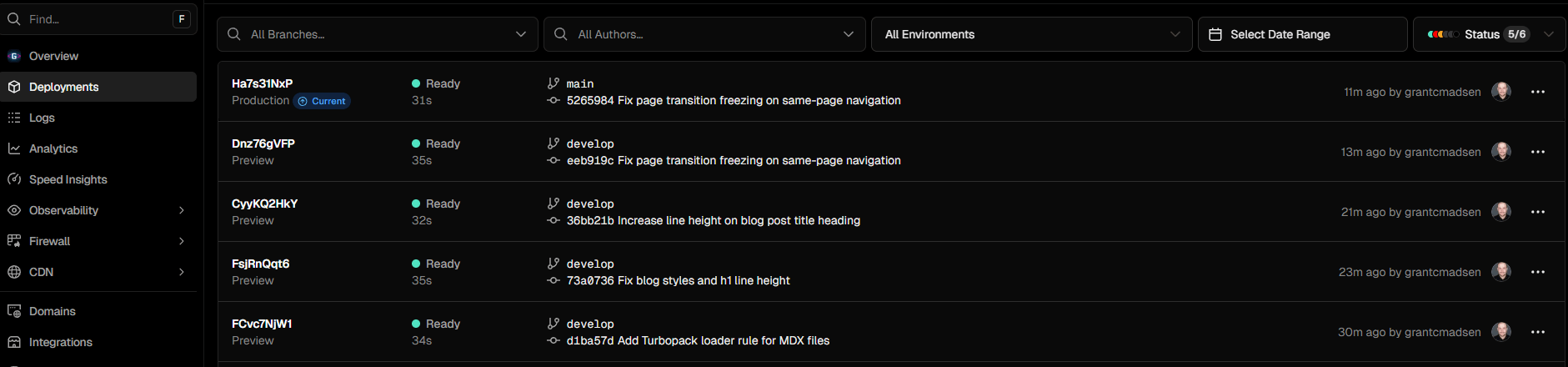
The workflow from a code change to a live deployment looks like this.
- Make changes on a feature branch
- Open a pull request, which triggers a Vercel preview deployment
- Run PageSpeed against the preview URL
- Merge to main
- Vercel builds and deploys to production
Preview deployments are one of the most useful parts of this setup. Every open PR has a real, accessible URL with its own environment. You can validate scores before anything hits production.
Connecting Vercel to Slack
The Slack integration lives inside Vercel under the Integrations tab. Search for Slack, authorise it, and choose which channel should receive notifications.
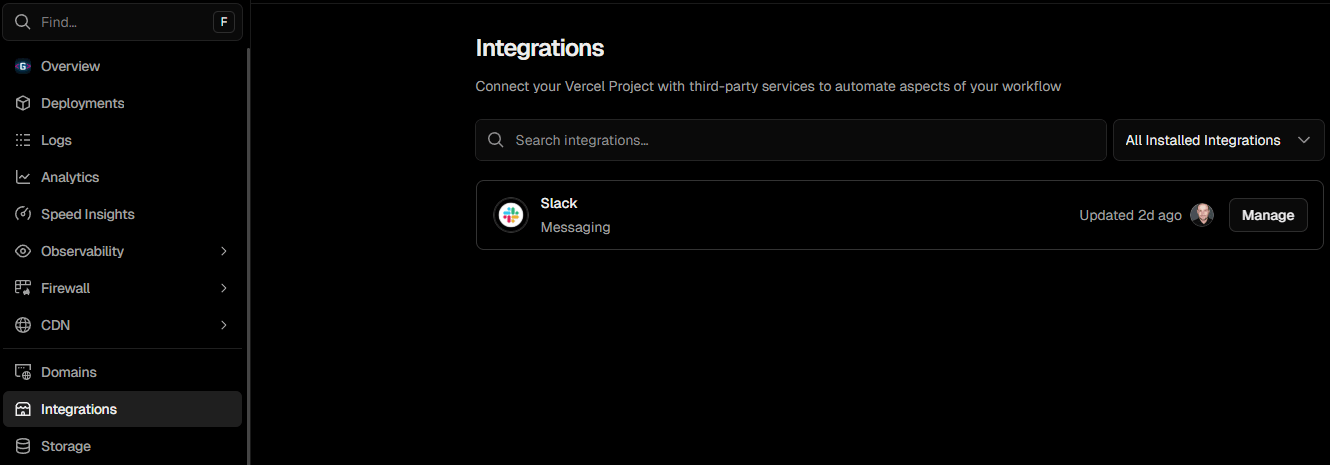
Once configured, a message posts to the chosen channel every time a deployment completes. The message includes the project name, the deployment status, the branch, and a direct link.
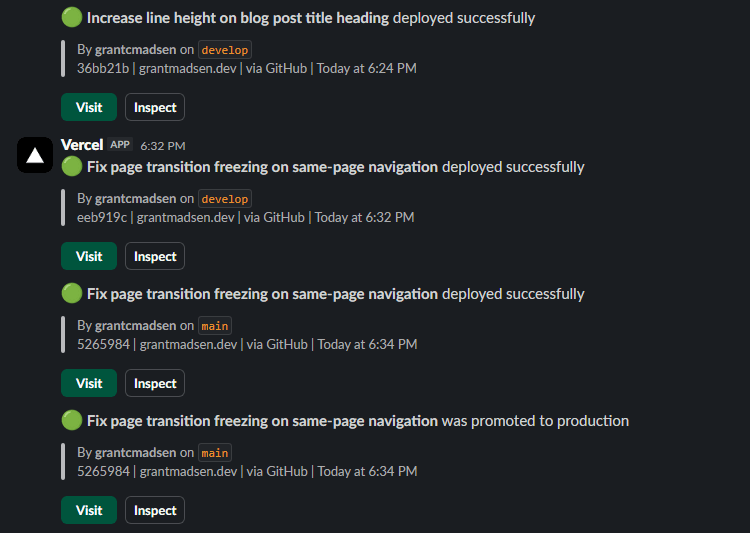
The practical result is that no one on the team needs to watch the Vercel dashboard. A deployment happens, Slack fires, and everyone sees it. If a production deployment fails, the failure shows up in the same channel immediately.
For a single developer this is a nice convenience. For a team it closes a real communication gap. Deployments become visible events rather than something you have to actively check for.
Putting It Together
The workflow looks like this once the site is built and deployed.
Run PageSpeed against the live URL or a Vercel preview. Note what failed. Open Claude Code, describe the issue, and work through the fix. Commit and push to a feature branch.
Vercel builds a preview. Run PageSpeed against it. If the scores hold, merge to main.
Vercel deploys to production. Slack confirms it.
The whole loop from identifying an issue to verifying the fix is live takes under ten minutes. The accessibility audits, performance budgets, and best practices checks become part of the shipping cycle rather than a separate phase that gets skipped.
That is the real value. Not any one tool, but the way they fit together to make the right workflow the easy workflow.
Tip: Let Claude Code Run PageSpeed for You
You can give Claude Code direct access to the PageSpeed Insights API so it can run audits itself without you copying results back and forth.
Get an API key from Google Cloud Console. Create a project, enable the PageSpeed Insights API, and generate a key under APIs and Services. Once you have it, share it with Claude Code in your session and ask it to run audits against any URL directly.
A fair warning: the PageSpeed API response is large. A single audit call returns several hundred kilobytes of JSON covering every audit, metric, and opportunity in detail. That translates to a meaningful chunk of context tokens. If you are running audits frequently in a session, it adds up. Asking Claude Code to summarise only the failing audits rather than process the full response helps keep things efficient.